Armada Desktop
Trying to use Armada on the desktop?
Visit https://armada.buzz/downloads and download the version for your operating system:
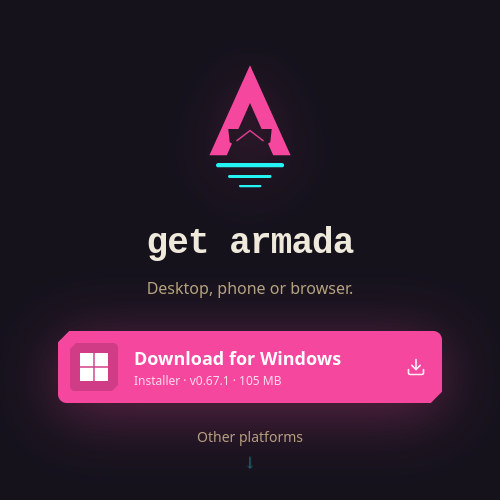
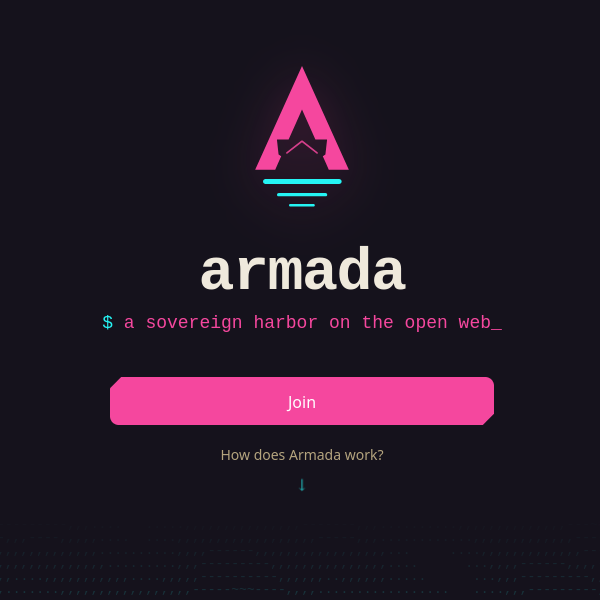
Once the application has been installed, open Armada & click Join
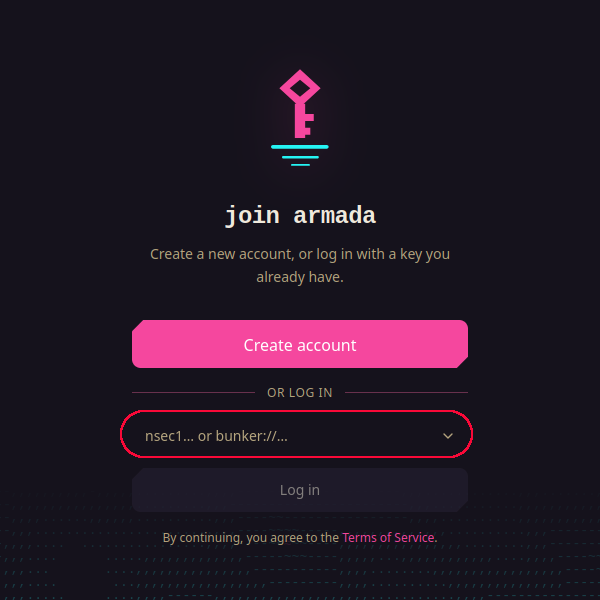
If you don’t have an account yet, click Create Account
If you already have an account, you can paste your private key into the field below and click Log In
(private keys normally begin with “nsec” followed by a long string of numbers & letters)
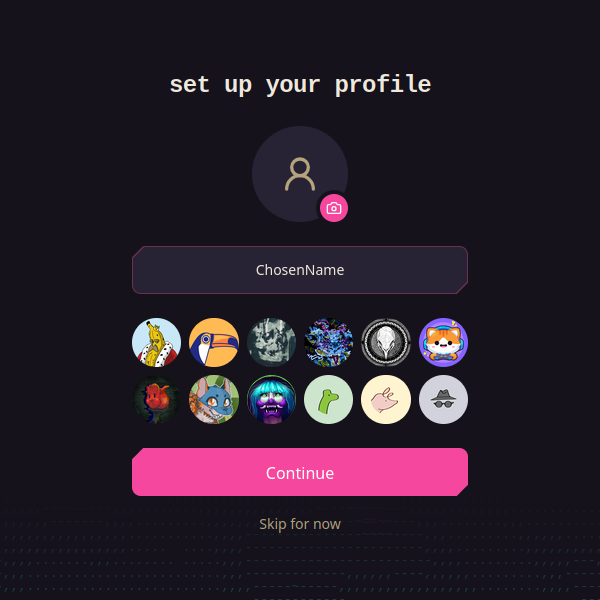
Enter a display name and choose or upload a profile icon and click Continue
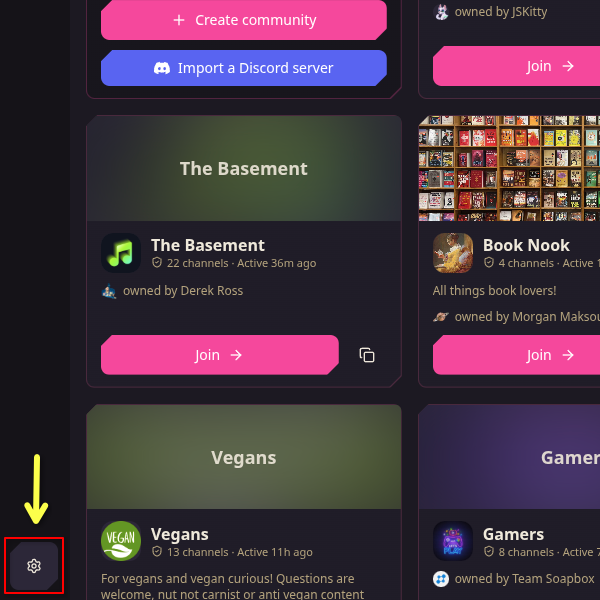
On the Discover page click on the settings cog in the bottom left corner:
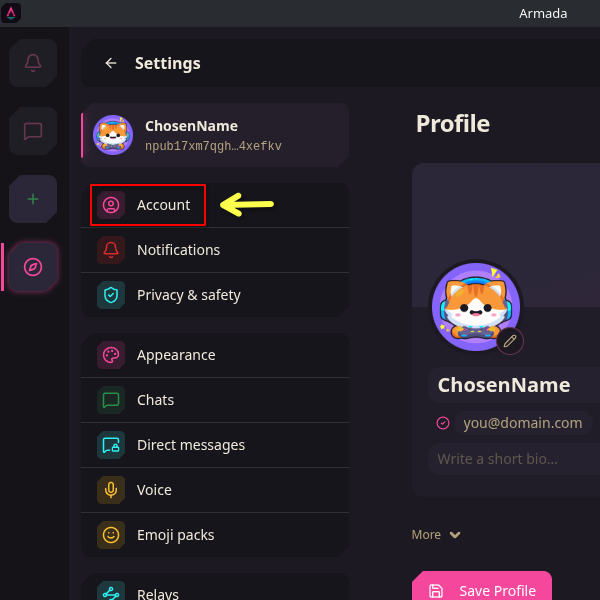
Click on Account:
Choose Copy to copy your private key somewhere safe like a password manager or choose Back up to download a text file containing your private key to save it somewhere safe like on the VasBud Nextcloud, iCloud, or Google Drive
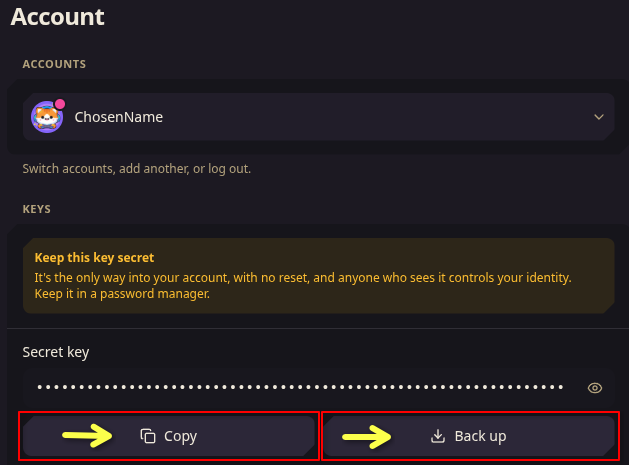
It is VERY IMPORTANT that you do not lose this key, it contains all of the information about your account/identity and there is no way to get back into your account if you lose it.
If you lose access to your private key, you’d need a generate a new key and re-join any rooms and re-add any friends.
Please keep this key safe and do not share it with anyone, it is essentially your username and password combined
In the upper left column click the plus sign to add a chat:
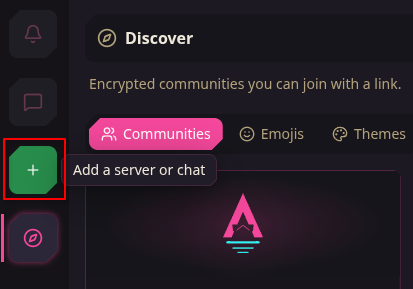
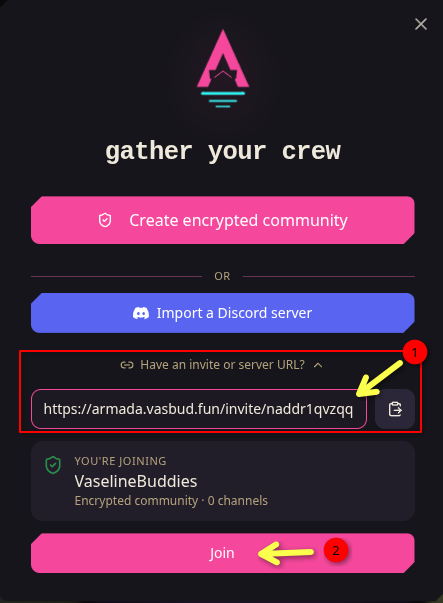
Copy & paste this invite URL into the field:
https://armada.vasbud.fun/invite/naddr1qvzqqqyzz5pzpdrs73dn45y6r6nfn4mtzmn0xt566dgmlq3zhhyrkklr4v8j2ynlqqqqj4p772#BAADABFhcm1hZGEudmFzYnVkLmZ1bgMELgYVYL2Tvk3mmJT111PPXQ
and hit Join: